第4章: ネットワークの基礎
前提(検証環境)
- WSL2 上の Ubuntu(例: 22.04/24.04)
- Windows 側の操作(例:
netsh interface portproxy)は PowerShell を管理者権限で実行する - 章内で
lsof/netcat-openbsdをインストールする(sudoが必要)
この章の目標
- ネットワークの基本概念を説明できる
- WSL2 のネットワーク特性を把握する
- 基本的なネットワークコマンドを使って状態確認ができる
できるようになること
- ネットワークの接続状態を確認できる
- Web サーバーにアクセスできる
- ネットワークトラブルを一次切り分けできる
はじめに:ネットワークを理解する
この章では、コンピュータ同士がどうやって通信するかを学びます。 特に WSL2 環境での仕組みを理解することが重要です。
用語の整理(例)
- IP アドレス: 通信先を識別するアドレス
- ポート番号: サービス(プロセス)を識別する番号
- ping: 疎通(到達性)の確認
- curl: HTTP/HTTPS 等でのデータ取得
4.1 WSL2 のネットワーク構造
WSL2 ネットワークの特性
WSL2 は仮想化された Linux 環境として動作するため、Windows ホストとの通信は NAT 等を介します。
概念上は、次のように整理できます。
- Windows: 外部ネットワークに接続するホスト
- WSL2: ホスト内の仮想ネットワークに接続するゲスト
- NAT: アドレス変換により外部との通信を中継する仕組み
WSL2ネットワークアーキテクチャ
WSL2 は仮想マシンとして動作し、独自の仮想ネットワークアダプタを持ちます。Windows ホストとは NAT 経由で通信します。
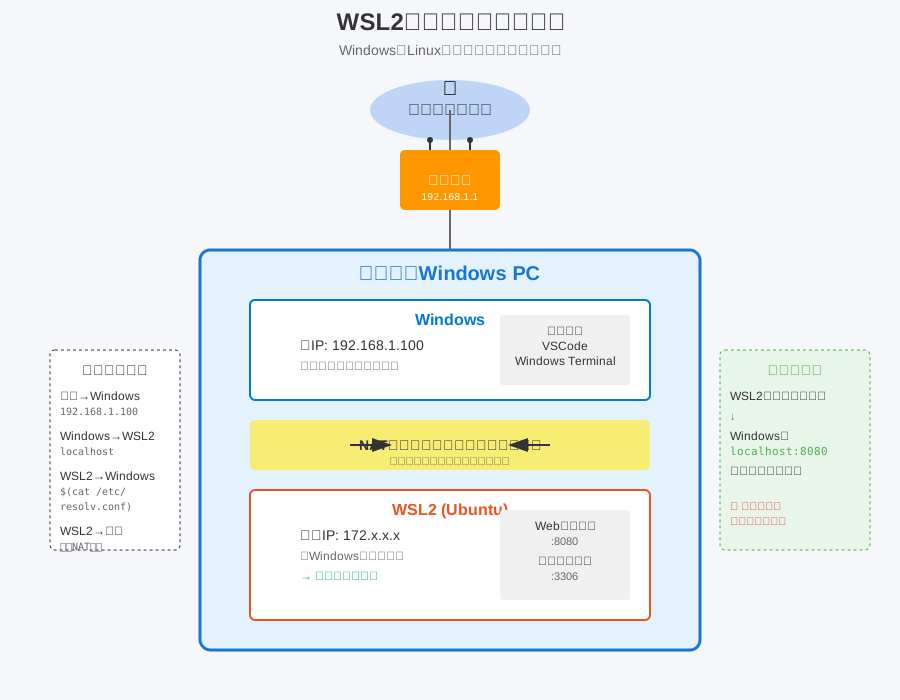
この図は、WSL2 が Windows ホストと連携してネットワーク通信を行う流れを示しています。
# WSL2のIPアドレス確認(内部IP)
ip addr show eth0
# 出力例:172.x.x.x(これは内部専用)

# WindowsのIP確認(WSL2から見た)
cat /etc/resolv.conf | grep nameserver
# 出力例:172.x.x.1(Windowsへの経路)
注意点は次のとおりです。
- WSL2 の IP アドレスは起動のたびに変わる場合がある
- 外部ネットワークから WSL2 に直接アクセスできない場合がある(NAT 等の制約)
- 既定の構成では
localhost経由でアクセスできる場合がある(転送機構による)
ポートフォワーディングの仕組み
# WSL2 → Windows: 自動転送(WSL2 側でサーバー起動)
python3 -m http.server 8000

# Windowsブラウザでアクセス可能
# http://localhost:8000
# Windows → WSL2: 手動設定が必要な場合(PowerShell: 管理者)
# hostname -I が複数IPを返す場合があるため、先頭のIPのみ使用する
$wsl_ip = (wsl hostname -I).Trim().Split(' ')[0]
netsh interface portproxy add v4tov4 listenport=8080 listenaddress=0.0.0.0 connectport=8080 connectaddress=$wsl_ip
ネットワーク設定ファイル
# DNS設定
cat /etc/resolv.conf

# ホスト名解決
cat /etc/hosts

# ネットワークインターフェース設定
cat /etc/netplan/*.yaml  # Ubuntu(netplan採用)
# WSL2では自動生成のため編集不要
4.2 基本ネットワークコマンド
ip - ネットワーク設定表示
# インターフェース一覧
ip link show

# IPアドレス表示
ip addr show
ip a  # 省略形

# ルーティングテーブル
ip route show
ip r  # 省略形

# 特定インターフェースの詳細
ip addr show eth0
ping - 疎通確認
# 基本的な疎通確認
ping google.com

# 回数指定
ping -c 4 google.com

# パケットサイズ指定
ping -s 1000 google.com

# 連続ping(1秒間隔)
ping -i 1 192.168.1.1

# タイムアウト設定
ping -W 2 -c 3 unreachable.host
pingの結果解釈は次のとおりです。
64 bytes from 142.250.x.x: icmp_seq=1 ttl=115 time=8.45 ms
│                │              │       │        └─ 応答時間
│                │              │       └─ TTL(Time To Live)
│                │              └─ シーケンス番号
│                └─ 応答元IP
└─ パケットサイズ
traceroute - 経路追跡
# インストール
sudo apt install -y traceroute

# 経路追跡
traceroute google.com

# UDPの代わりにICMP使用
traceroute -I google.com

# 最大ホップ数指定
traceroute -m 10 google.com
nslookup/dig - DNS問い合わせ
# nslookup基本
nslookup google.com

# 特定DNSサーバー指定
nslookup google.com 8.8.8.8

# dig(より詳細)
sudo apt install -y dnsutils
dig google.com

# 特定レコードタイプ
dig google.com MX  # メールサーバー
dig google.com TXT # テキストレコード
dig google.com A   # IPv4アドレス
dig google.com AAAA # IPv6アドレス

# 簡潔な出力
dig +short google.com
4.3 ポートとサービス
ss/netstat - ポート確認
# ssコマンド(推奨)
# リスニングポート表示
ss -tln  # TCPのみ
ss -uln  # UDPのみ
ss -tlnp # プロセス情報付き(要sudo)

# 全接続表示
ss -tan  # TCP接続
ss -uan  # UDP接続

# 特定ポート検索
ss -tan | grep :80
出力の読み方は次のとおりです。
State  Recv-Q Send-Q Local Address:Port   Peer Address:Port Process
LISTEN 0      511    0.0.0.0:80           0.0.0.0:*     nginx
│      │      │      │                    │             └─ プロセス名
│      │      │      │                    └─ 接続先(*は任意)
│      │      │      └─ ローカルアドレス:ポート
│      │      └─ 送信キュー
│      └─ 受信キュー
└─ 状態
lsof - ポート使用プロセス特定
# インストール
sudo apt install -y lsof

# 特定ポート使用プロセス
sudo lsof -i :80
sudo lsof -i :8080

# TCP接続のみ
sudo lsof -i TCP

# 特定プロセスのネットワーク接続
sudo lsof -i -p PID
curl - HTTPクライアント
# 基本的なGET
curl http://example.com

# ヘッダーのみ取得
curl -I http://example.com

# 詳細表示
curl -v http://example.com

# POSTリクエスト
curl -X POST -d "name=value" http://example.com/api

# JSONデータ送信
curl -X POST \
  -H "Content-Type: application/json" \
  -d '{"key":"value"}' \
  http://api.example.com/endpoint

# ファイルダウンロード
curl -O http://example.com/file.zip  # 元のファイル名
curl -o myfile.zip http://example.com/file.zip  # 名前指定

# 進捗表示付きダウンロード
curl -# -O http://example.com/largefile.zip

# Basic認証
curl -u username:password http://example.com

# HTTPステータスコードのみ
curl -s -o /dev/null -w "%{http_code}" http://example.com
wget - ファイルダウンロード
# 基本ダウンロード
wget http://example.com/file.zip

# 再帰的ダウンロード
wget -r -l 2 http://example.com

# 再試行設定
wget --tries=3 --timeout=30 http://example.com/file.zip

# バックグラウンドダウンロード
wget -b http://example.com/largefile.zip
tail -f wget-log  # ログ確認
4.4 実践: ローカルWebサーバー構築
Python簡易HTTPサーバー
# Python3 HTTPサーバー(開発用)
cd ~/public_html
python3 -m http.server 8000

# 特定IPでバインド
python3 -m http.server 8000 --bind 127.0.0.1

# CGI有効化
python3 -m http.server --cgi 8000
Node.js HTTPサーバー
# Node.jsインストール
curl -fsSL https://deb.nodesource.com/setup_20.x | sudo -E bash -
sudo apt install -y nodejs

# 簡易サーバー作成
cat << 'JS' > server.js
const http = require('http');
const fs = require('fs');
const path = require('path');

const server = http.createServer((req, res) => {
    console.log(`${new Date().toISOString()} - ${req.method} ${req.url}`);

    if (req.url === '/') {
        res.writeHead(200, {'Content-Type': 'text/html'});
        res.end('<h1>Hello from Node.js on WSL2!</h1>');
    } else if (req.url === '/api/time') {
        res.writeHead(200, {'Content-Type': 'application/json'});
        res.end(JSON.stringify({time: new Date().toISOString()}));
    } else {
        res.writeHead(404);
        res.end('Not Found');
    }
});

server.listen(3000, () => {
    console.log('Server running at http://localhost:3000/');
});
JS

# サーバー起動
node server.js

# 別ターミナルでテスト
curl http://localhost:3000/
curl http://localhost:3000/api/time
Netcat - 汎用ネットワークツール
# インストール
sudo apt install -y netcat-openbsd

# TCPサーバー起動
nc -l 12345

# TCPクライアント接続
nc localhost 12345

# ポートスキャン
nc -zv localhost 20-100

# ファイル転送
# 受信側:
nc -l 12345 > received_file.txt
# 送信側:
nc localhost 12345 < send_file.txt

# 簡易チャットサーバー
# サーバー側:
nc -l 12345
# クライアント側:
nc server_ip 12345
※ Ubuntu では nc は netcat-openbsd が標準になりやすく、実装差により nc -l -p ... が動かない場合があります。本書では Ubuntu 標準環境で動く形として nc -l <PORT> を採用します。
4.5 ファイアウォール基礎
ufw - 簡易ファイアウォール
# インストールと有効化
sudo apt install -y ufw

# 状態確認
sudo ufw status

# 基本ポリシー設定
sudo ufw default deny incoming
sudo ufw default allow outgoing

# 特定ポート許可
sudo ufw allow 22/tcp   # SSH
sudo ufw allow 80/tcp   # HTTP
sudo ufw allow 443/tcp  # HTTPS

# 特定IPからのみ許可
sudo ufw allow from 192.168.1.100 to any port 22

# ルール削除
sudo ufw delete allow 80/tcp

# 有効化(WSL2では通常不要)
sudo ufw enable
iptables - 詳細設定
# 現在のルール表示
sudo iptables -L -n -v

# 特定ポートを開く
sudo iptables -A INPUT -p tcp --dport 8080 -j ACCEPT

# 特定IPからの接続を拒否
sudo iptables -A INPUT -s 192.168.1.100 -j DROP

# ルール保存(再起動後も維持)
sudo apt install -y iptables-persistent
sudo netfilter-persistent save
4.6 ネットワークトラブルシューティング
接続診断フロー
#!/bin/bash
# network_check.sh - ネットワーク診断スクリプト

echo "=== Network Diagnostics ==="

# 1. インターフェース確認
echo "1. Network Interfaces:"
ip link show | grep -E "^[0-9]:" | awk '{print $2}'

# 2. IPアドレス確認
echo -e "\n2. IP Addresses:"
ip -4 addr show | grep inet | grep -v 127.0.0.1

# 3. デフォルトゲートウェイ確認
echo -e "\n3. Default Gateway:"
ip route | grep default

# 4. DNS確認
echo -e "\n4. DNS Servers:"
cat /etc/resolv.conf | grep nameserver

# 5. 外部接続テスト
echo -e "\n5. Connectivity Tests:"
ping -c 1 127.0.0.1 > /dev/null 2>&1 && echo "✓ Loopback" || echo "✗ Loopback"
ping -c 1 $(ip route | grep default | awk '{print $3}') > /dev/null 2>&1 && echo "✓ Gateway" || echo "✗ Gateway"
ping -c 1 8.8.8.8 > /dev/null 2>&1 && echo "✓ Internet (IP)" || echo "✗ Internet (IP)"
ping -c 1 google.com > /dev/null 2>&1 && echo "✓ DNS Resolution" || echo "✗ DNS Resolution"
よくある問題と対処
| 問題 | 症状 | 対処法 |
|---|---|---|
| localhostに接続できない | curl: (7) Failed to connect |
サービス起動確認、ポート確認 |
| 外部から接続できない | タイムアウト | Windows Firewall確認 |
| DNS解決失敗 | cannot resolve host |
/etc/resolv.conf確認 |
| ポート既に使用中 | Address already in use |
lsof -i :PORTで確認 |
| WSL2 IP変更 | 接続先不明 | hostname -Iで再確認 |
WSL2特有の問題対処
# Windows Defenderファイアウォール例外追加(PowerShell管理者)
New-NetFirewallRule -DisplayName "WSL2 Port 8080" -Direction Inbound -LocalPort 8080 -Protocol TCP -Action Allow

# WSL2のIP自動取得スクリプト
cat << 'SCRIPT' > ~/get_wsl_ip.sh
#!/bin/bash
# WSL2 IP取得
WSL_IP=$(hostname -I | awk '{print $1}')
WIN_IP=$(cat /etc/resolv.conf | grep nameserver | awk '{print $2}')

echo "WSL2 IP: $WSL_IP"
echo "Windows IP (from WSL2): $WIN_IP"

# Windowsのhostsファイル更新用
echo "Add to C:\\Windows\\System32\\drivers\\etc\\hosts:"
echo "$WSL_IP wsl.local"
SCRIPT

chmod +x ~/get_wsl_ip.sh
4.7 演習問題
演習1: ポート監視スクリプト
#!/bin/bash
# port_monitor.sh - 指定ポートの監視

PORTS="22 80 443 3306 5432"
LOG_DIR="$HOME/logs"
LOG_FILE="$LOG_DIR/port_monitor.log"

mkdir -p "$LOG_DIR"

echo "=== Port Monitoring Report ===" | tee -a "$LOG_FILE"
echo "Date: $(date)" | tee -a "$LOG_FILE"

for port in $PORTS; do
    if ss -tln | grep -q ":$port "; then
        service=$(ss -tlnp 2>/dev/null | grep ":$port " | awk '{print $NF}' | cut -d'"' -f2)
        echo "✓ Port $port is open (Service: ${service:-unknown})" | tee -a "$LOG_FILE"
    else
        echo "✗ Port $port is closed" | tee -a "$LOG_FILE"
    fi
done
演習2: 簡易ロードバランサー
#!/bin/bash
# simple_lb_demo.sh - バックエンド起動 + 簡易ロードバランサー

# バックエンドサーバー起動
for i in {1..3}; do
    port=$((8000 + i))
    mkdir -p ~/backend$i
    echo "<h1>Backend Server $i</h1>" > ~/backend$i/index.html
    (cd ~/backend$i && python3 -m http.server $port) &
done

# ロードバランサー
# Ubuntu標準のncは -c をサポートしないため、Pythonで簡易ロードバランサーを実装する
cat > simple_lb.py << 'PY'
#!/usr/bin/env python3
from http.server import BaseHTTPRequestHandler, HTTPServer
import itertools
import urllib.request
import urllib.error

BACKENDS = [
    "http://localhost:8001",
    "http://localhost:8002",
    "http://localhost:8003",
]
backend_cycle = itertools.cycle(BACKENDS)


class Handler(BaseHTTPRequestHandler):
    def do_GET(self):
        backend = next(backend_cycle)
        url = backend + self.path
        try:
            with urllib.request.urlopen(url, timeout=3) as resp:
                body = resp.read()
                status = resp.status
                content_type = resp.headers.get("Content-Type", "text/html; charset=utf-8")
        except (urllib.error.URLError, TimeoutError) as e:
            body = f"Upstream error: {e}\n".encode("utf-8")
            status = 502
            content_type = "text/plain; charset=utf-8"

        self.send_response(status)
        self.send_header("Content-Type", content_type)
        self.send_header("Content-Length", str(len(body)))
        self.end_headers()
        self.wfile.write(body)

    def log_message(self, format, *args):
        return


if __name__ == "__main__":
    server = HTTPServer(("127.0.0.1", 8000), Handler)
    print("Listening on http://localhost:8000")
    server.serve_forever()
PY

python3 simple_lb.py
演習3: API監視とアラート
#!/bin/bash
# api_health_check.sh - API死活監視

ENDPOINTS=(
    "http://localhost:3000/health"
    "http://localhost:8080/api/status"
    "http://example.com/ping"
)

check_endpoint() {
    local url=$1
    local response=$(curl -s -o /dev/null -w "%{http_code}" --connect-timeout 5 $url)

    if [ "$response" = "200" ]; then
        echo "$(date): ✓ $url is healthy (HTTP $response)"
    else
        LOG_DIR="$HOME/logs"
        LOG_FILE="$LOG_DIR/api_alerts.log"
        mkdir -p "$LOG_DIR"
        echo "$(date): ✗ $url is down (HTTP $response)" | tee -a "$LOG_FILE"
        # アラート送信(メール、Slack等)
        # echo "API Down: $url" | mail -s "API Alert" admin@example.com
    fi
}

while true; do
    for endpoint in "${ENDPOINTS[@]}"; do
        check_endpoint $endpoint
    done
    sleep 60
done
4.8 パフォーマンス測定
帯域幅測定
# iperfインストール
sudo apt install -y iperf3

# サーバーモード
iperf3 -s

# クライアントモード
iperf3 -c server_ip

# 詳細オプション
iperf3 -c server_ip -t 30 -P 4  # 30秒間、4並列
レイテンシ測定
# mtr - 継続的なtraceroute
sudo apt install -y mtr
mtr google.com

# 統計情報のみ
mtr -r -c 100 google.com
HTTP応答時間測定
# 詳細な時間測定
curl -w @- -o /dev/null -s http://example.com << 'EOF'
    time_namelookup:  %{time_namelookup}\n
       time_connect:  %{time_connect}\n
    time_appconnect:  %{time_appconnect}\n
   time_pretransfer:  %{time_pretransfer}\n
      time_redirect:  %{time_redirect}\n
 time_starttransfer:  %{time_starttransfer}\n
                    ----------\n
         time_total:  %{time_total}\n
EOF

# 簡易ベンチマーク
for i in {1..10}; do
    time curl -s http://localhost:8000 > /dev/null
done
まとめ
ネットワーク管理の要点は次のとおりです。
- WSL2 の特性理解: NAT 構造とポートフォワーディング
- 基本ツールの把握: ping、curl、ss の日常的な利用
- トラブルシューティング: 段階的な問題切り分け手法
次章では、これらの知識を活用してシェルスクリプトによる自動化を扱います。
次章へ: 第5章 シェルスクリプト入門